If you’re using Siemens PLCs for your automation projects, you may be managing your files using archive folders or shared drives, or perhaps even Git. Copia Automation offers a powerful and versatile solution, bringing Git-based version control directly to your Siemens PLC projects.
Here are six things you should know about Copia, and the benefits it delivers for Siemens PLC programming:
1. Multi-User Programming
Copia inherently allows for multi-user programming, allowing your team to work collaboratively and simultaneously, without needing to check a project out and back in to make changes.
2. File Type and Language Support
Currently, Copia supports Step7 TIA Portal versions v14 SP1 – v17, using the archive format: .zap14, .zap15, .zap16, and .zap17. Support for Step7 (V5.x) and the Step7 TIA Portal standard project format (non-archived) are planned for Q1/Q2 of 2022; this means that for any of these file types, Copia can render logic and highlight code changes in Ladder Logic (LAD), Structured Control Language/Structured Text (SCL), and Statement List (STL), as well as in Variable lists and User-defined Data Types (UDT).
3. Renders Ladder Logic In-App
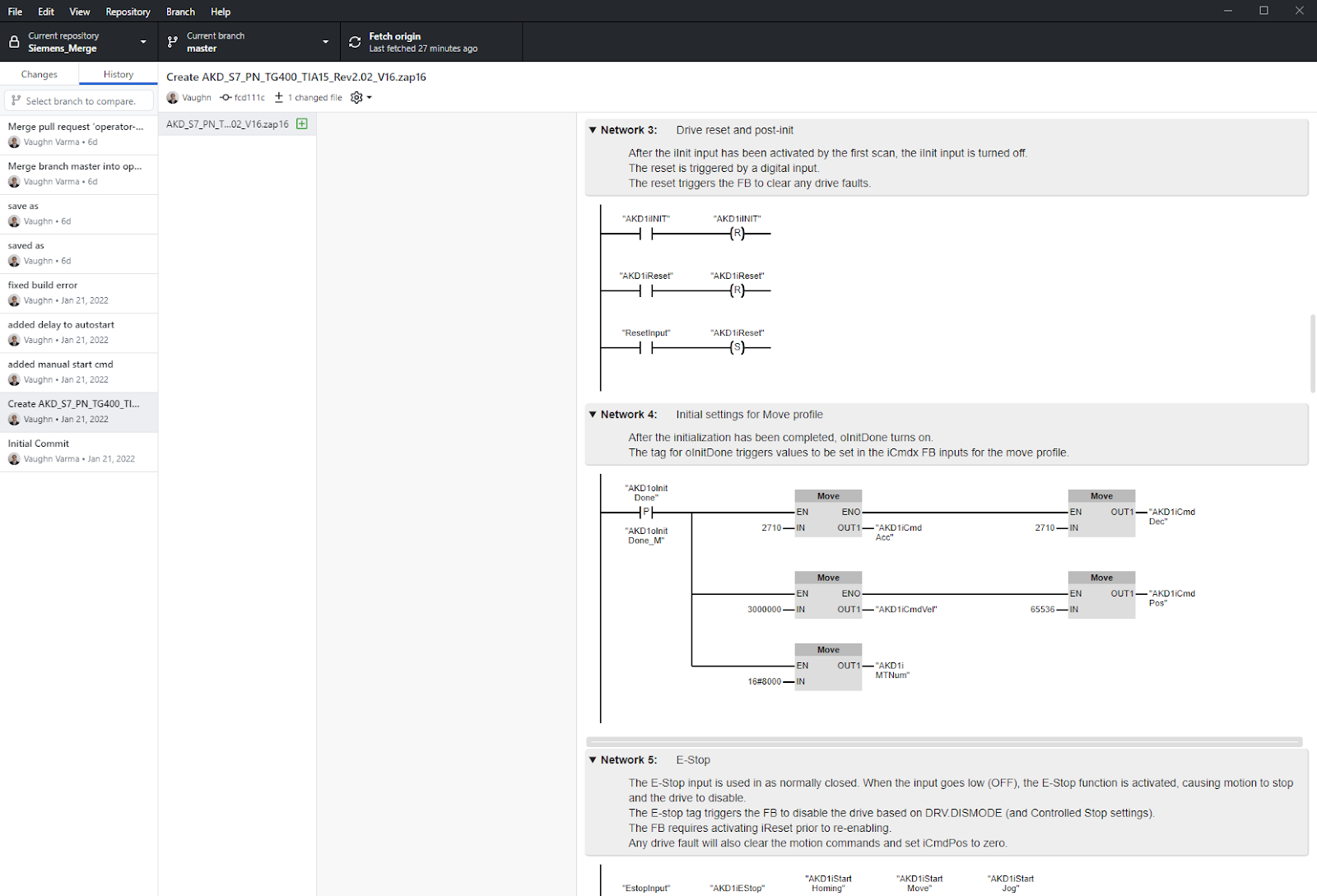
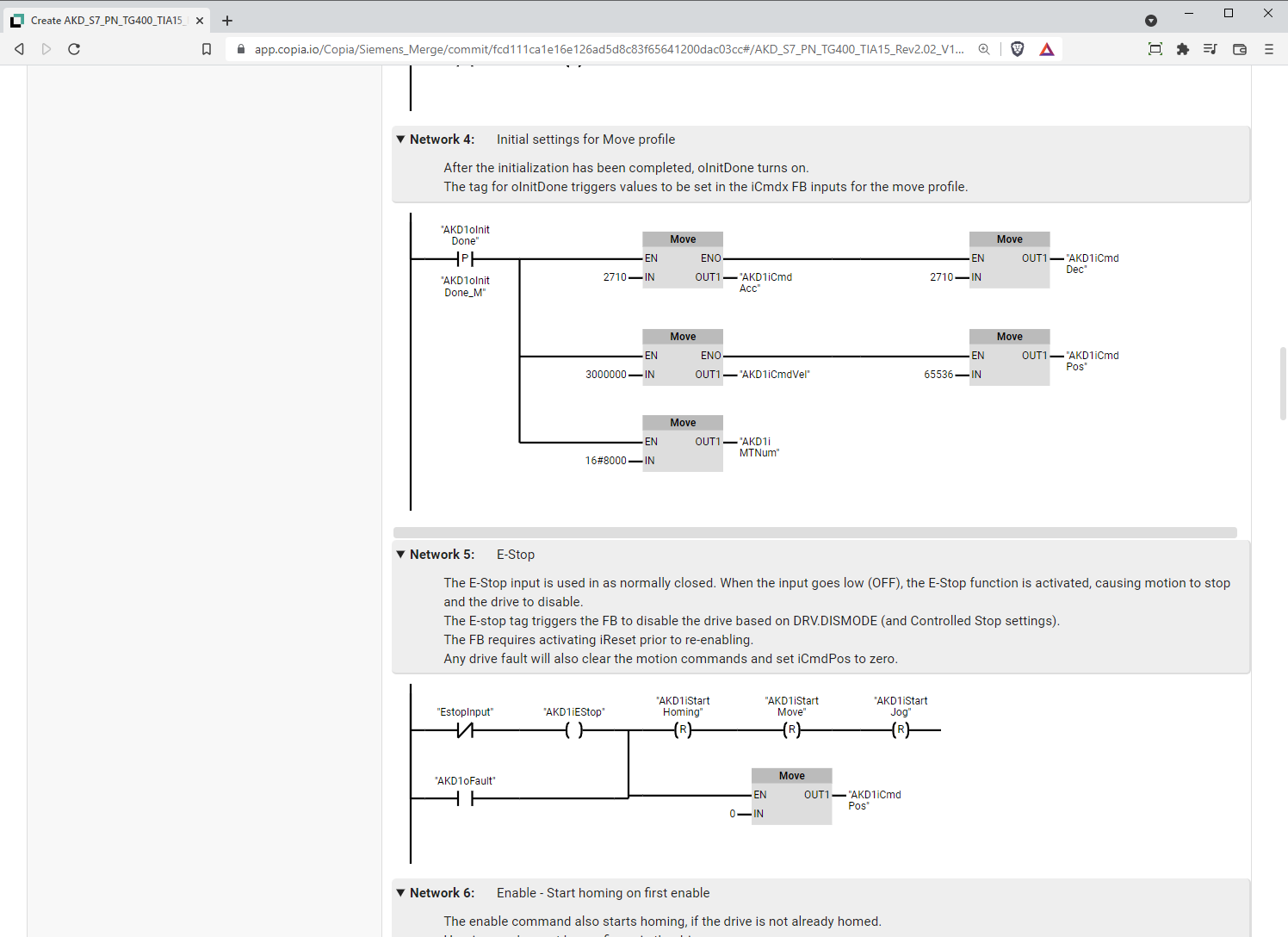
Don’t have access to TIA Portal? You can still view your whole project, rendered in both Copia’s desktop app, and right in your web browser.
4. Project Archives
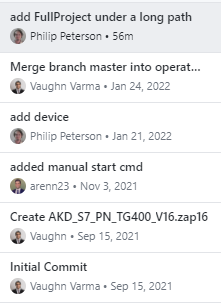
The quickest way to get started with version control for your Siemens PLC is to create an archive:
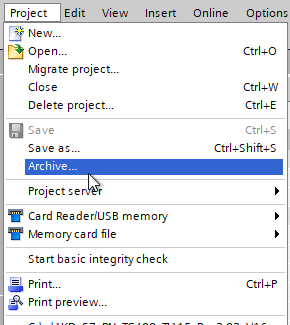
These archives can be parsed by, and rendered directly in Copia, giving you full access to the power of Git-based source control.
5. Version Control Interface
Already using a version control system with TIA Portal’s Version Control Interface (VCI)? No problem; you can add an existing Git repository to Copia, create a new repository in an existing VCI workspace folder, or use TIA Portal to create a VCI workspace in a Copia repository on your machine. Any way you do it, the result is the same: the power of Copia in your hands.
6. Merge Tool
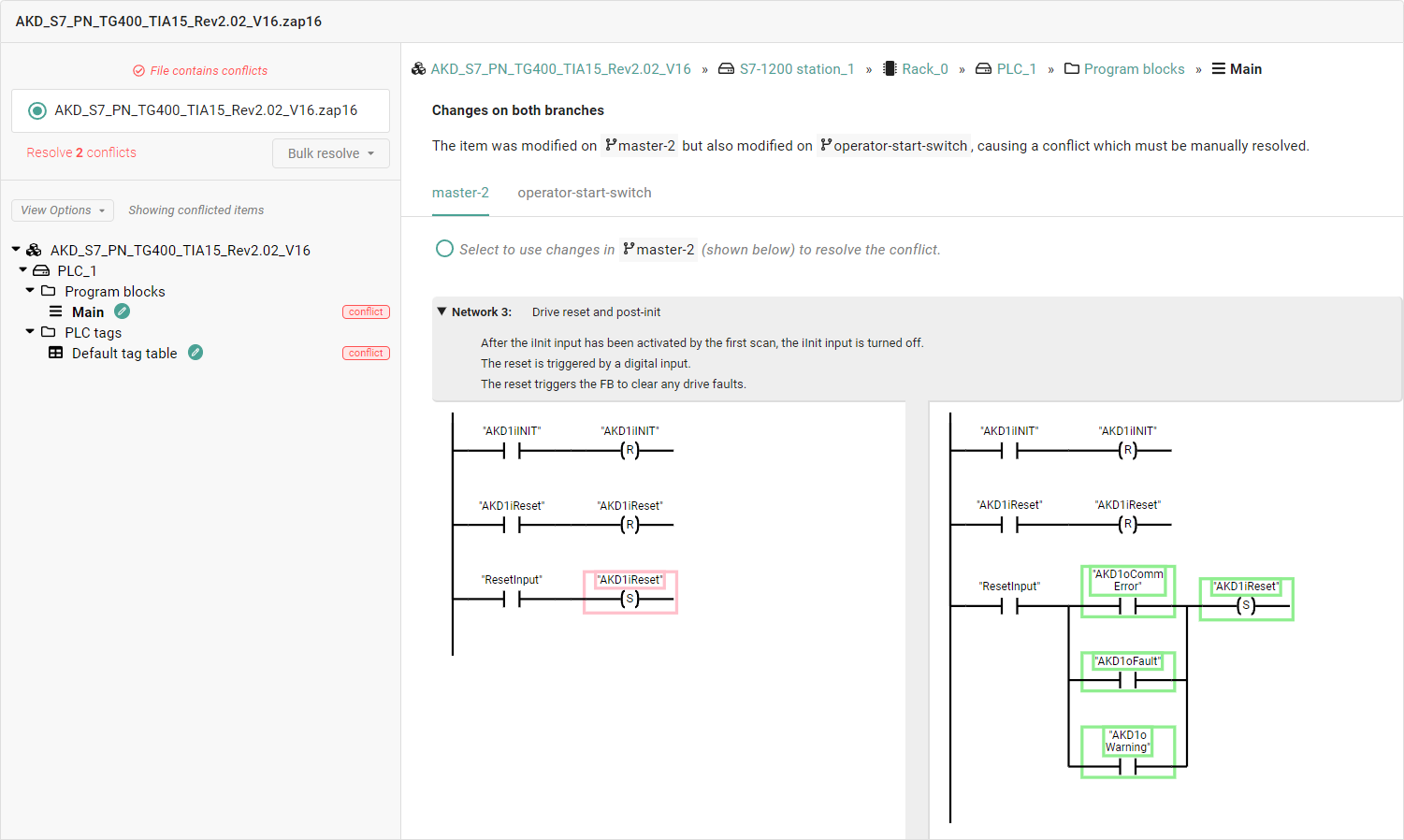
With multiple engineers working on the same parts of the same project at the same time, you may run into a situation where two engineers have made changes to a project that directly conflict with one another.
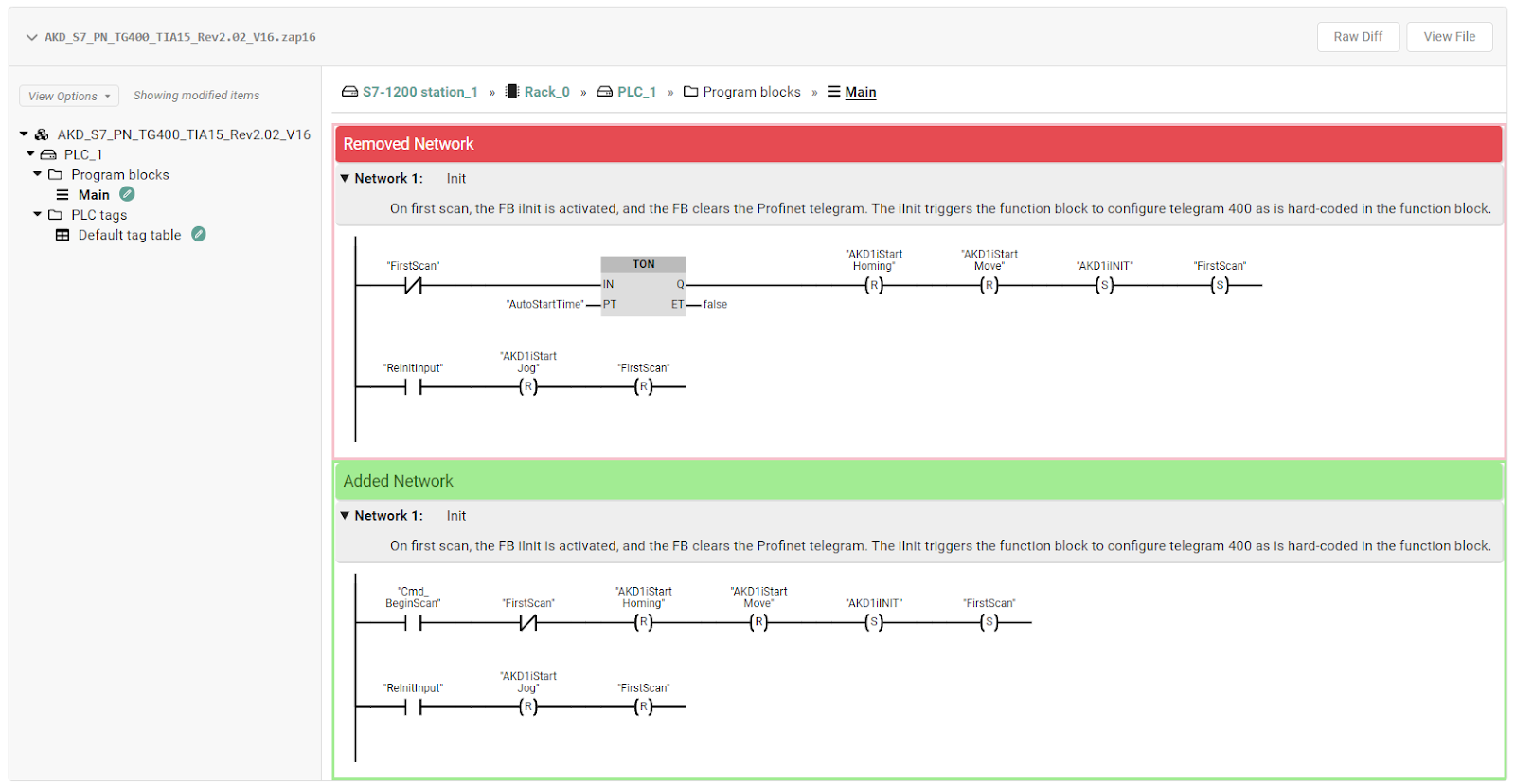
Copia provides a powerful merge tool for Step7 projects from TIA Portal v15.1-v17, letting you pick which version belongs in the final product for each individual conflict.